> ## Documentation Index
> Fetch the complete documentation index at: https://dapplets.mintlify.site/llms.txt
> Use this file to discover all available pages before exploring further.
# Picker tool
> Picker — a tool that allows users to select a contextual area on a web page in order to perform actions on it or extract useful data. This tool is provided by the platform for application developers, who define how and for what purposes the Picker will be used.
## Picker Example
To try out the Picker in action, you can use the Picker Example application.
Personalize web platforms with additional features and custom layouts.
## Picker mode
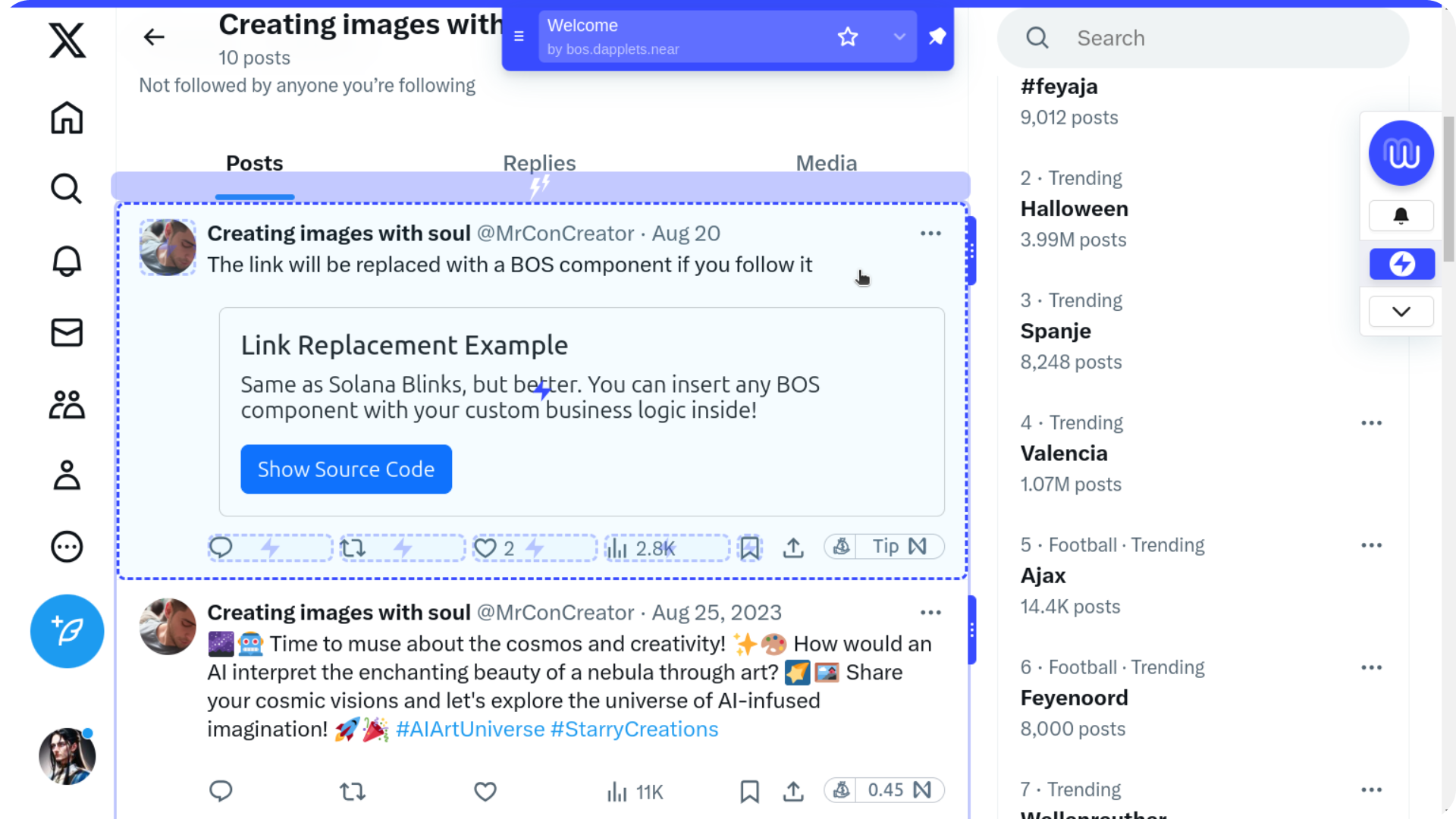
In the right sidebar, in the central area among the action buttons, select **Run Picker**. Once clicked, the Picker mode will be activated. By moving the cursor around the screen, you can observe context highlighting. The contexts are defined in parser configs that have already been added to our ecosystem.
 ## Highlighted contexts
You can see highlights for contexts such as user profiles, post feeds, individual posts, avatars in posts, custom post buttons, and more.
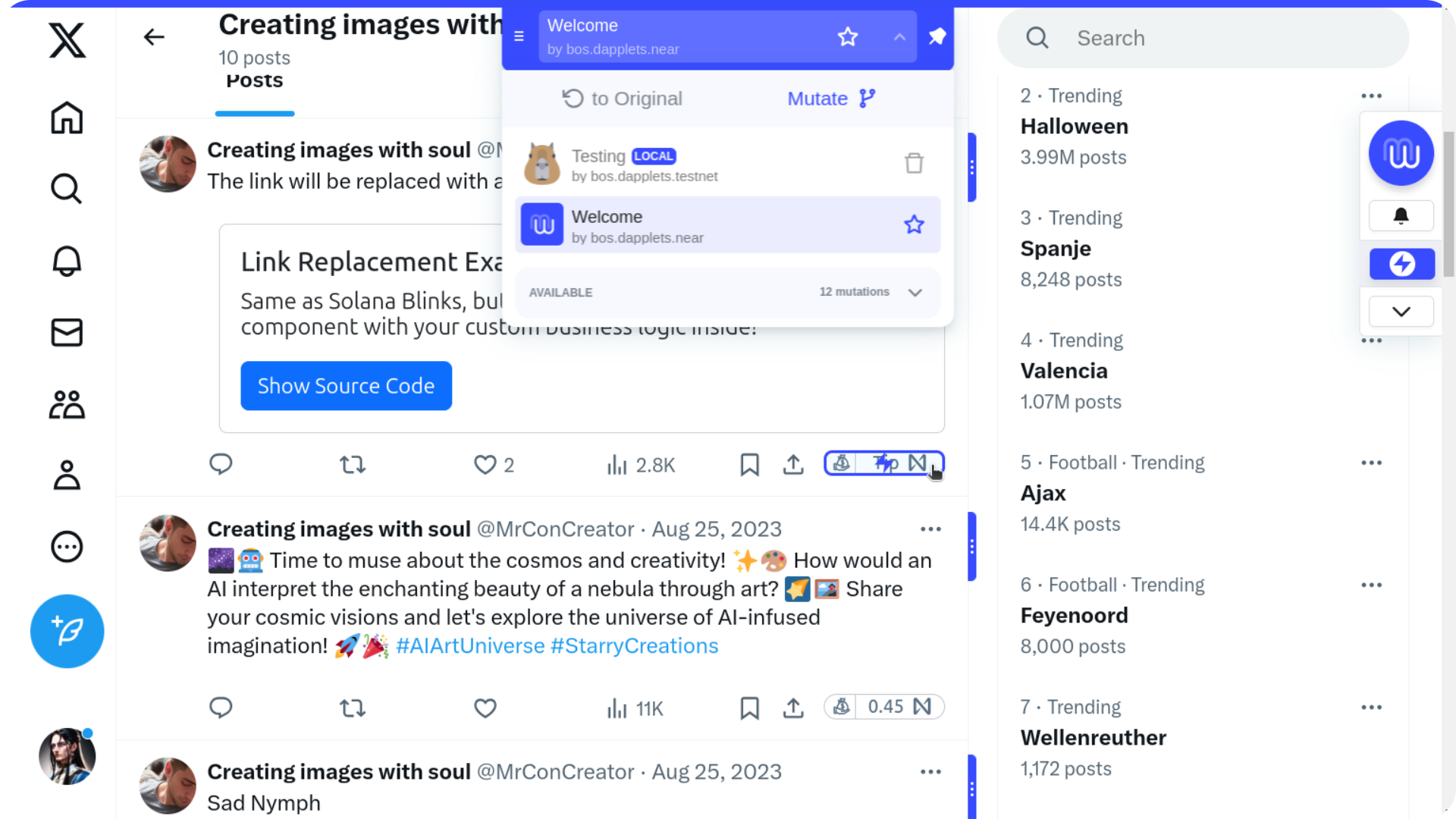
You may also notice highlights on elements of the Mutable Web extension’s sidebar or top panel, as well as on widgets embedded in contexts, such as the **Tipping** application widget.
## Highlighted contexts
You can see highlights for contexts such as user profiles, post feeds, individual posts, avatars in posts, custom post buttons, and more.
You may also notice highlights on elements of the Mutable Web extension’s sidebar or top panel, as well as on widgets embedded in contexts, such as the **Tipping** application widget.
 ## Interaction with the contexts
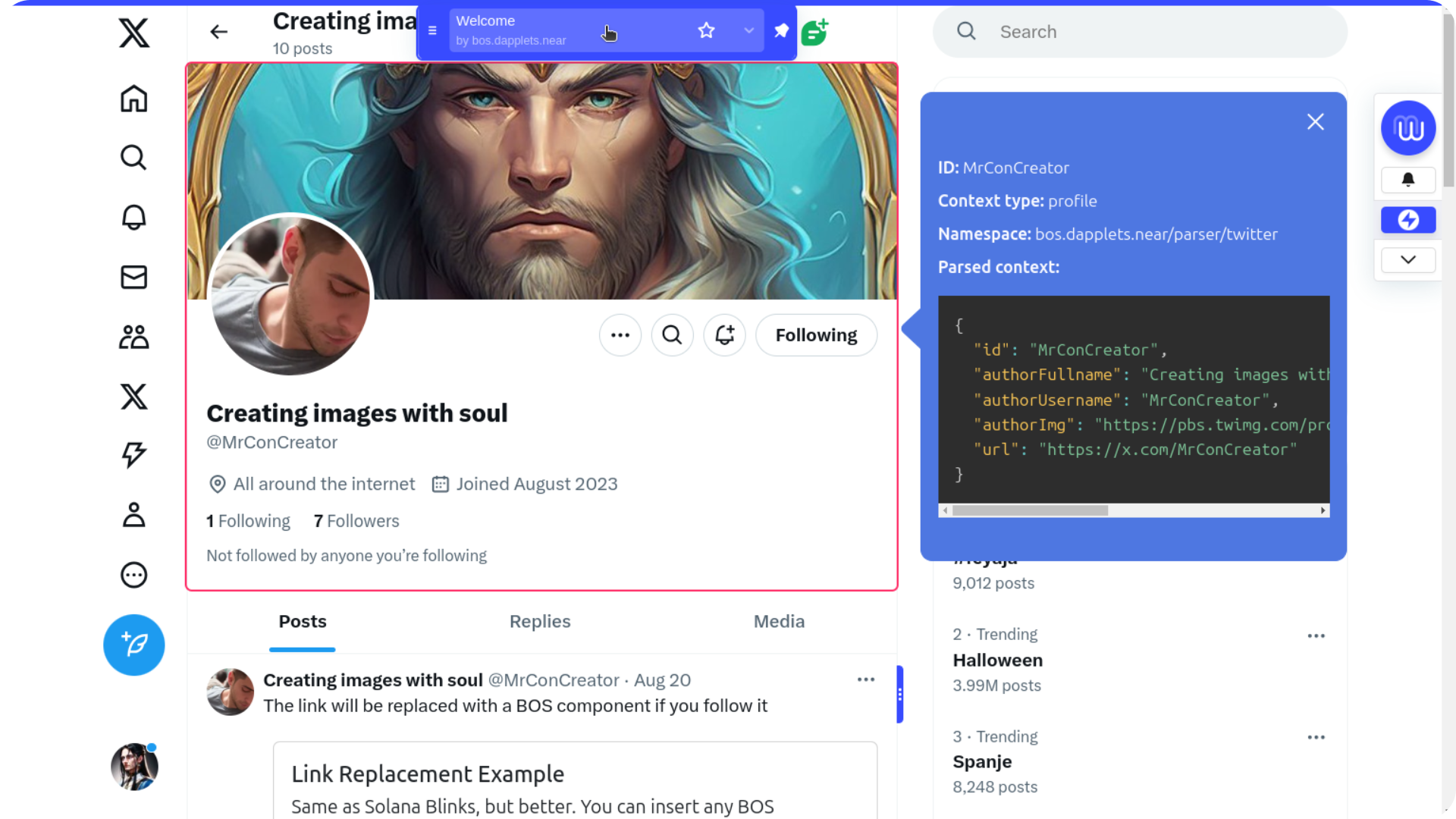
If a context is not only highlighted but also filled, with a lightning icon in the center, clicking on it will open a popup with information about this context.
## Interaction with the contexts
If a context is not only highlighted but also filled, with a lightning icon in the center, clicking on it will open a popup with information about this context.
 ## Latch
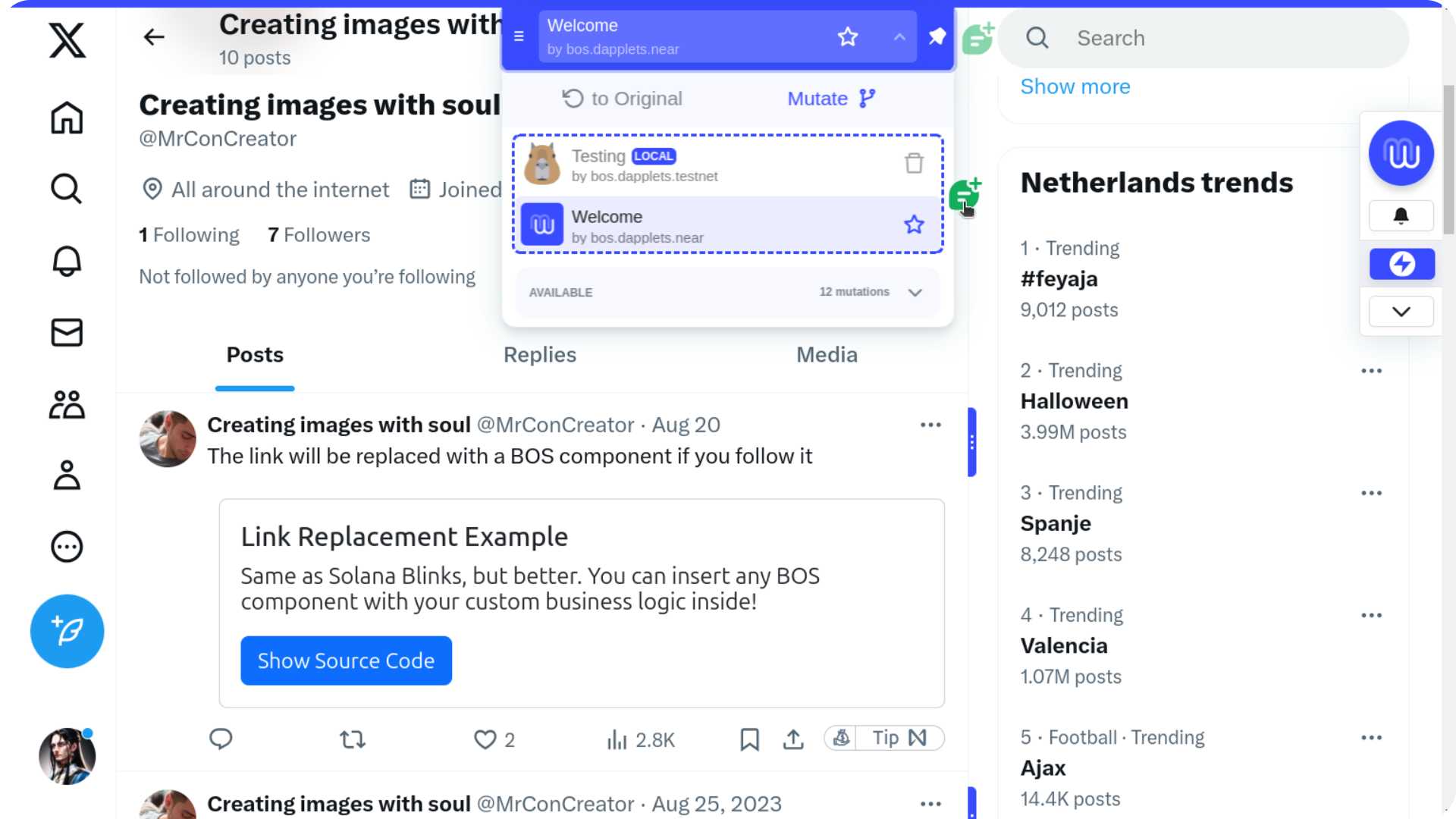
If there is a button with plus icon or a double lightning icon next to the highlight, the informational popup will open by clicking on it. We call them **Latch** buttons. This way, interaction with the context itself is not restricted.
## Latch
If there is a button with plus icon or a double lightning icon next to the highlight, the informational popup will open by clicking on it. We call them **Latch** buttons. This way, interaction with the context itself is not restricted.
 ## Exit Picker mode
To exit Picker mode, click the Close button at the top right of the popup, or click the **Run Picker** button in the sidebar again.
## API
* [`DappletContextPicker`](https://dapplets.mintlify.app/api-references/dapplet-context-picker)
* [`Highlighter`](https://dapplets.mintlify.app/api-references/highlighter)
## Exit Picker mode
To exit Picker mode, click the Close button at the top right of the popup, or click the **Run Picker** button in the sidebar again.
## API
* [`DappletContextPicker`](https://dapplets.mintlify.app/api-references/dapplet-context-picker)
* [`Highlighter`](https://dapplets.mintlify.app/api-references/highlighter)